
Vestigo allows sites to upload site specific documents in the facility document section. These documents are facility specific, and once uploaded, are automatically visible on every protocol that has that facility listed. Uploaded documents are associated with the facility so each facility could have different documents, if desired.
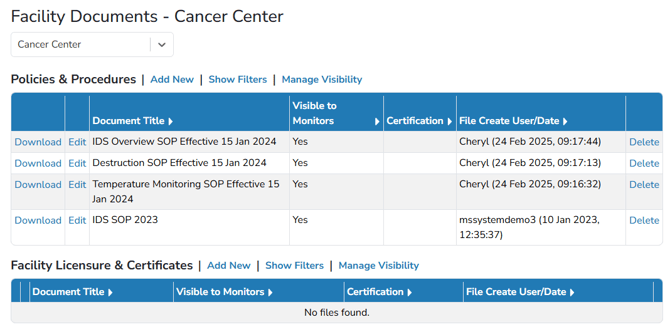
These documents can also be visible to monitors during active monitoring visits. The monitor will see any facility documents uploaded in the facilities on the study. This means sites may need to upload documents when logged into each facility.
Vestigo allows sites to upload site specific documents in the facility document section. To properly group such documents, there are five separate sections:
- Policies & Procedures
- Facility Licensure & Certificates
- Staff Licensure & Certifications
- Notes to File
- Other
Permissions Needed
FacilityDocumentsManage – Ability to manage facility documents under Protocol Management.
FacilityDocumentsView - Ability to view facility documents.
Users must have these permissions available to them in at least one role in the facility.
Contents
- Uploading Facility Documents
- Creating Facility Documents
- Downloading Facility Documents
- Modifying Facility Documents
- Deleting Facility Documents
Uploading Facility Documents
- In the green navigation bar, click on Protocol Management
- Click on Facility Documents
- (Optional) Select a facility from the drop down. By default, the facility you are logged into is selected
- Click Add New in the section you want to upload a file to
- Users can drag and drop files or they can click the drop area to use the explorer to locate the file
- The page will refresh and the file you just uploaded will be visible in the section you added it to
Creating Facility Documents
- In the green navigation bar, click on Protocol Management
- Click on Facility Documents
- (Optional) Select a facility from the drop down. By default, the facility you are logged into is selected
- Click Add New in the section you want to upload a file to
- Select the Create File radio option
- Enter a File Name
- Users can manually enter in the text field, or they can use templates to import a premade batch of text
- Click Save
Downloading Facility Documents
- In the green navigation bar, click on Protocol Management
- Click on Facility Documents
- (Optional) Select a facility from the drop down. By default, the facility you are logged into is selected
- Locate the file you want to download and click Download
Modifying Facility Documents
The types of modifications users can do to facility documents are dependent on the type of file to be edited is.
-
If the file was uploaded, users can edit the file name, visibility, and file certification.
-
If the file was created, users can edit the file name, visibility, and the content of the created document.
Certifying Facility Documents
Certifying documents allows users to document that the document added is an exact copy of the physical document. Only files that were uploaded can be certified. Files that are created in Vestigo cannot be certified. For instructions on how to certify a document, please reference our Certifying a Document KB.
Managing Facility Document Visibility
- In the green navigation bar, click on Protocol Management
- Click on Facility Documents
- (Optional) Select a facility from the drop down. By default, the facility you are logged into is selected
- Locate the file you want to download and click Edit
- Check the Visible to Monitor flag to toggle the visibility on or off
Facility Documents are automatically visible on the protocol and cannot be toggled off.
- Click Submit
Deleting Facility Documents
Once a file is deleted from Vestigo, the file is permanently deleted and is not recoverable.
- In the green navigation bar, click on Protocol Management
- Click on Facility Documents
- (Optional) Select a facility from the drop down. By default, the facility you are logged into is selected
- Locate the file you want to download and click Delete
- Users will need to confirm the deletion of the document by clicking Confirm