
While this functionality is not required, these options will always be present on the Patient Returns and Items in Quarantine screens. If the drug builds are not set up to require return and/or quarantine verification, prescription returns and quarantined inventory will not display in these sections.
If drug builds require return or quarantine verification, items with those dispositions must be verified or overridden before destruction or sponsor return. If a user edits a return for items already destroyed or returned, verification or override must be completed again before processing.
When a user verifies or overrides, the “Verified by” column will show “Verification by” or “Verification overridden by,” and the DARF will reflect this action using the same wording.
To use the override option, Override Reasons will need to be set up in Application Administration first. Users can review this Override Reasons article that goes over adding them.
For drug builds that require the verification, they can be access from the Facility Alerts or the individual protocol.
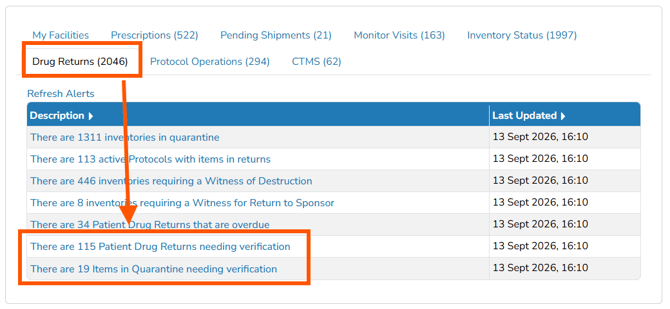
On either alert, users will click the Verify or Override link to be taken directly to the protocol to complete the process.
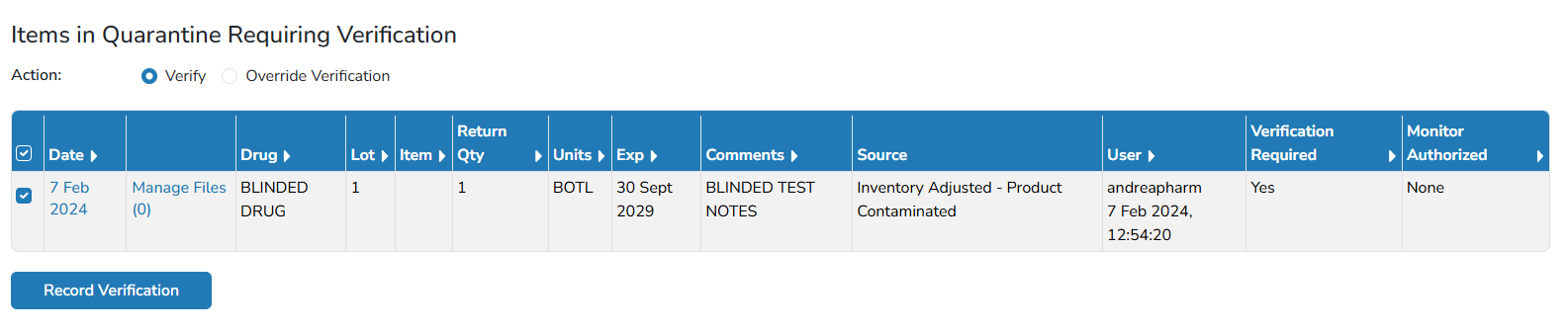
Verifying of Items in Patient Returns or Quarantine
If a user entered the prescription return or quarantine, that user cannot verify that action, however they can apply an override.
- Locate the item in the alerts and click Verify or
- Navigate to the protocol
- Click on the Inventory Tab > Manage Drug Returns
- Select either Patient Returns or Items In Quarantine tab
- The user will see the item listed in the verify/override grid.
- Ensure the Action is set to Verify
- Check the box for the item(s) to be verified.
- Select the Record Verification button to save the verify.
Override Verification of Items in Patient Returns or Quarantine
- Locate the item in the alerts and click Override or
- Navigate to the protocol
- Click on the Inventory Tab > Manage Drug Returns
- Select either Patient Returns or Items In Quarantine tab
- The user will see the item listed in the verify/override grid.
- Ensure the Action is set to Override
- Check the box for the item(s) to be verified.
- Select the Override button.
- Select an Override Reason and enter a comment.
- Some Override Reasons require a comment to override.
- Click Submit