
At McCreadie Group, we are committed to keeping all of your data— including PII (Personally Identifiable Information) and other sensitive information—secure, while ensuring our systems and procedures are up to date and in compliance with all related regulations. As the key provider of Investigation Drug Service software, protecting our client’s data is of the utmost importance, and we have the policies and standard operating procedures in place to ensure that this commitment is never broken.
Vestigo Multifactor Authentication (MFA) is available for sites that are not able to utilize SSO; it provides an additional layer of security by requiring the user to enter a one-time passcode (OTP) that is sent to the users’ registered email address, in addition to the email address and password. The user will only need to login via email/password as long as they continue to operate within the same browser or device, until the MFA authentication expires.
- Site users will authenticate at their site-specific URL with their email address and password for their Vestigo account.
- Once authenticated, the user will need click the “Send me an email button” to generate the One Time Password (OTP) link and code.
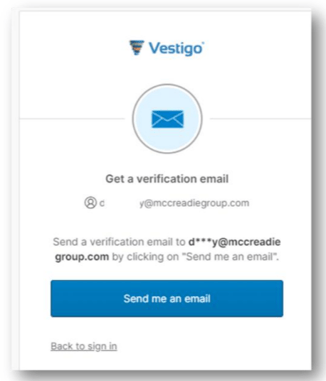
- The code and link will expire in 5 minutes. If the user doesn’t receive the email, they will be given the option to send an additional OTP email. This will invalidate the first email.
- Once the email is received by the user, you can click on the sign in button to automatically sign in to Vestigo.
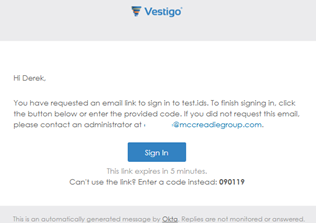
- When you automatically sign into Vestigo with the email, it will open Vestigo in a new tab in your default browser. The original tab may be closed.
Alternatively, if users are unable to click the link in the email, they are provided with a code at the bottom of the email to allow verification.
- After initial authentication, click “Enter a verification code instead.”
- Enter the code provided at the bottom of the email received.
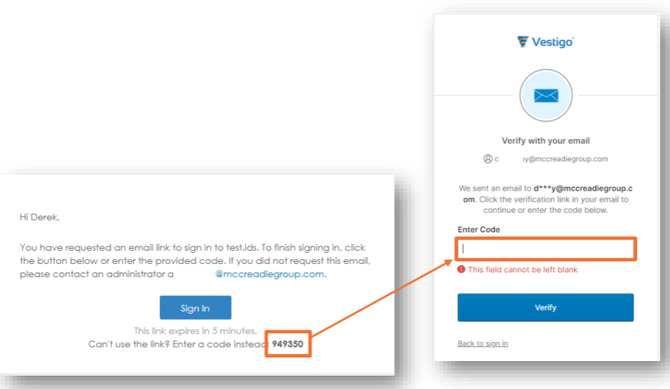
- Once verified, you will be redirected to Vestigo home page.
If you have forgotten your password, it is recommended to review this article.
Tips and FAQs for Vestigo MFA
Why am I not receiving the verification email?
You may need to check your junk/spam folder and safelist support@mccreadiegroup.com
Why is the sign in link or code not working?
The code and link expire after 5 minutes. Please try to reauthenticate.
Why am I being asked to reauthenticate on each login?
As long you are using the same device/browser to login, you should not be asked to reauthenticate outside of the authentication time. If your browser is removing cookies on close, you may need to adjust the browser settings.
What is the reauthentication period?
Once every 24 hours.
Bookmarks
We recommend not bookmarking the login page for your Vestigo URL as it can cause authentication issues. Once you authenticate into Vestigo and you are at the Protocol Search screen, you may bookmark this screen. Alternatively, you may create a bookmark and have the URL be similar to https://example.vestigo.biz. If your bookmark starts with login.vestigo.biz, this may cause authentication issues.